Drag into Applications.
Open the DMG and drag Morphlet to Applications. Launch it, then open Studio from the menu-bar icon. Option+C can require Finder Automation permission.
 MorphletGet Morphlet +
YOURS TO MAKE THINGS EASIER.
Choose your platform. Keep your flow.
Loading verified installers…
Installer links and release information from GitHub.
Windows installers are unsigned. Current macOS builds are ad-hoc signed, without an Apple Developer ID, and are not notarized. Your operating system may show a security prompt. Download only from Morphlet’s official GitHub repository. Mac installation & first-launch guide
FROM DOWNLOAD TO DONE.
Open the DMG and drag Morphlet to Applications. Launch it, then open Studio from the menu-bar icon. Option+C can require Finder Automation permission.
Open the x64 setup executable and follow its prompts. Morphlet runs in the notification area; its icon may be inside the overflow menu.
Make the AppImage executable and run it, or install the DEB with your package manager. AppImages may need FUSE. Tray availability depends on your desktop.
A FEW USEFUL DETAILS.
Closing Studio keeps the utility running. Quit from the tray menu. Launch at login is an optional setting.
AI-ready bundles can use a local Tesseract installation. Install the language data you need; Morphlet does not download OCR models.
The app is open source under MIT. See the repository for source setup and platform requirements.
Read the source guideBrowse release notes and direct downloads for previous published versions.
Browse all releasesMACOS / INSTALL & FIRST LAUNCH
Install. Review. Open.
Then keep your flow.
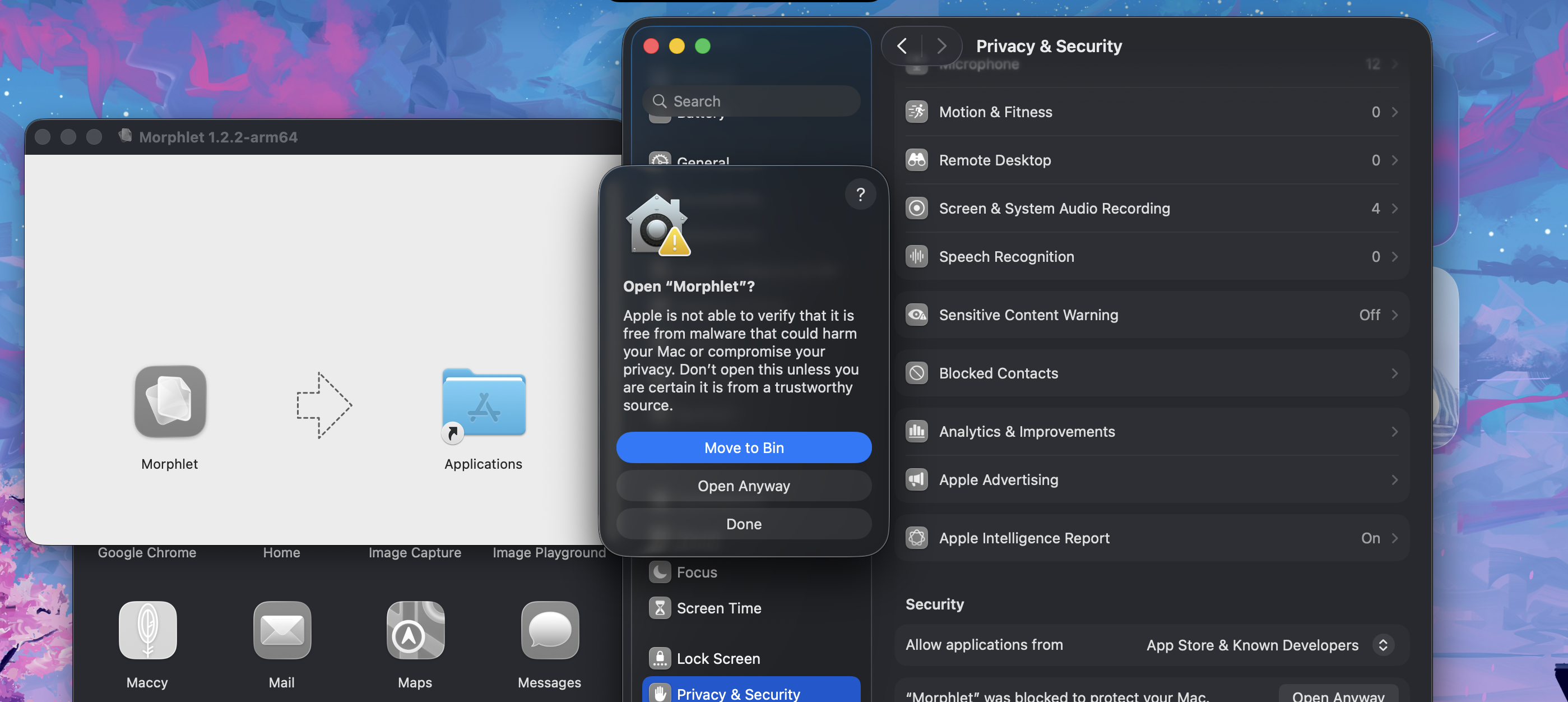
Morphlet’s macOS builds are ad-hoc signed and are not notarized by Apple. The screenshots show macOS’s first-launch verification warning, not proof that the app is corrupted. Only proceed if you trust Morphlet and downloaded it from the official GitHub release.
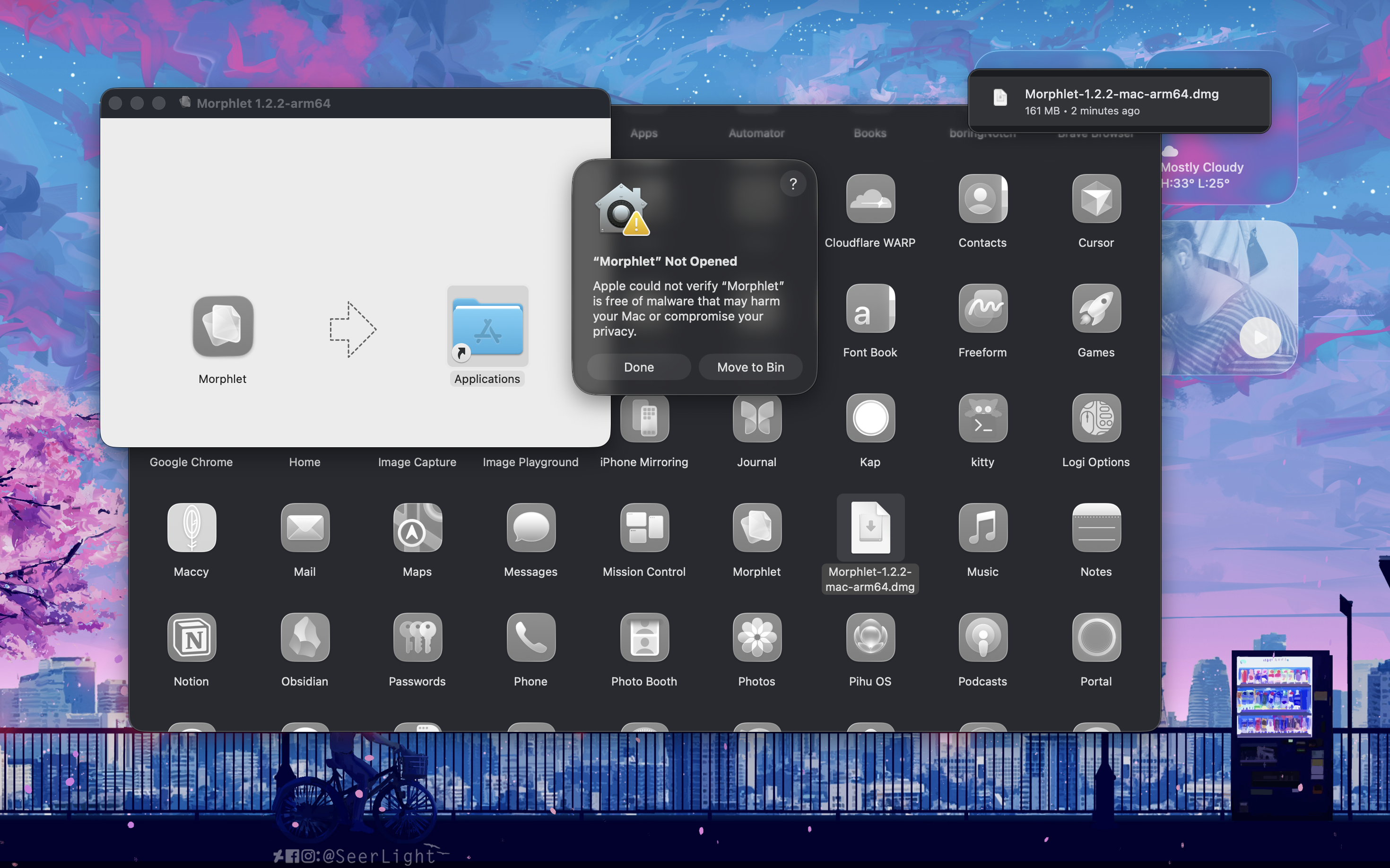
Choose Apple Silicon for M-series Macs or Intel for Intel Macs. Open the DMG, drag Morphlet into Applications, then eject the disk image. Launch the installed copy from Applications.
If macOS says “Morphlet Not Opened” and that Apple could not verify it, click Done. Do not choose Move to Bin if you intend to continue with this trusted download.
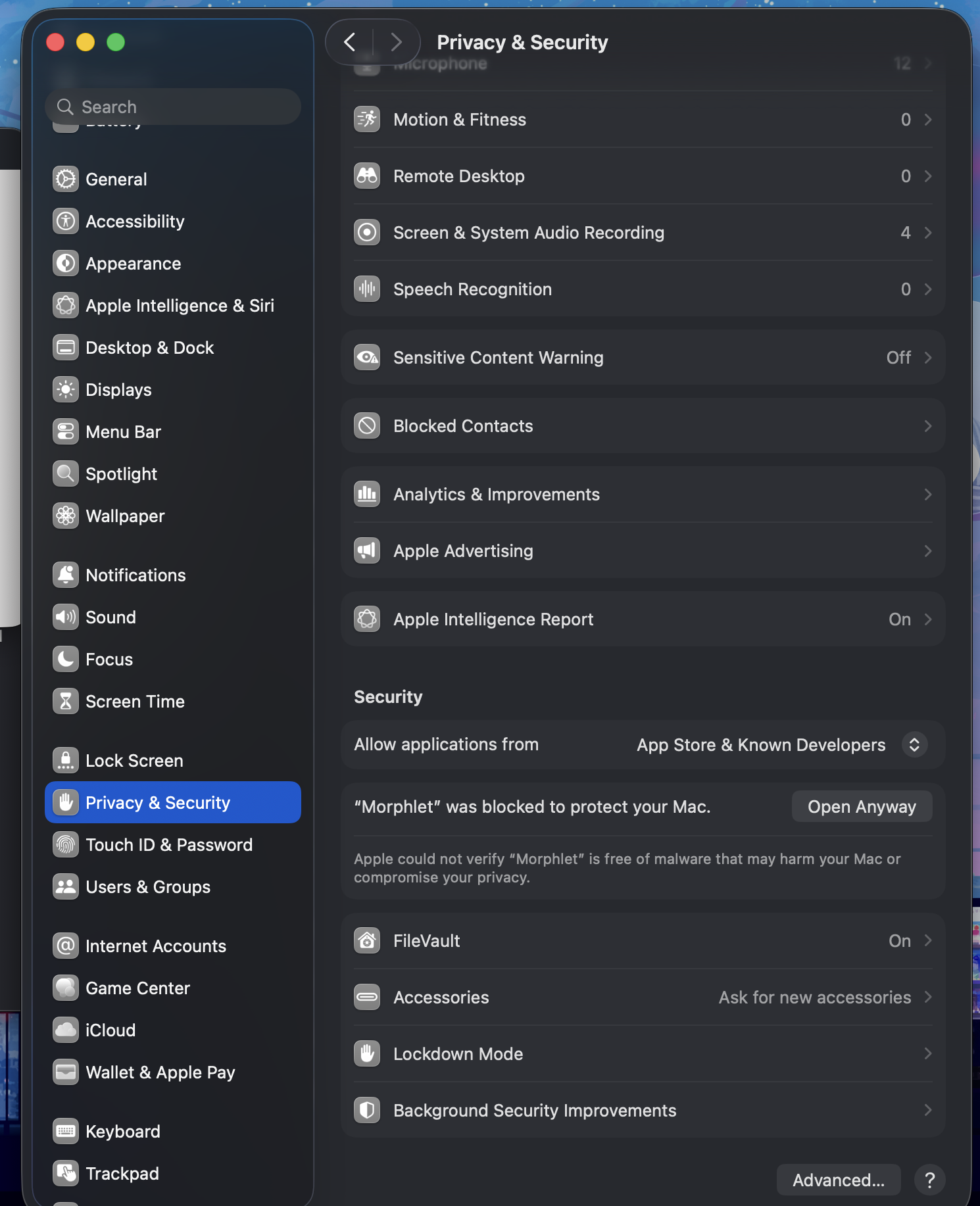
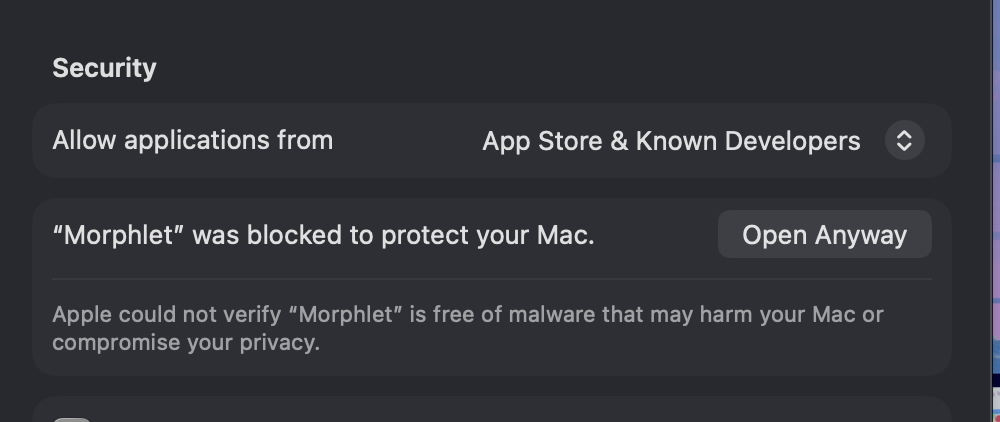
Open Apple menu → System Settings → Privacy & Security. Scroll down to the Security section and find the message that Morphlet was blocked.
Click Open Anyway beside Morphlet. Authenticate with your password or Touch ID if macOS requests it. In the confirmation dialog, review the app name and choose Open Anyway (or Open, depending on your macOS version).
Look for the Morphlet icon in the menu bar and choose Morphlet Studio or Choose files. Morphlet runs as a background utility, so an empty Dock or no window on launch is expected.
READY WHEN YOU NEED IT
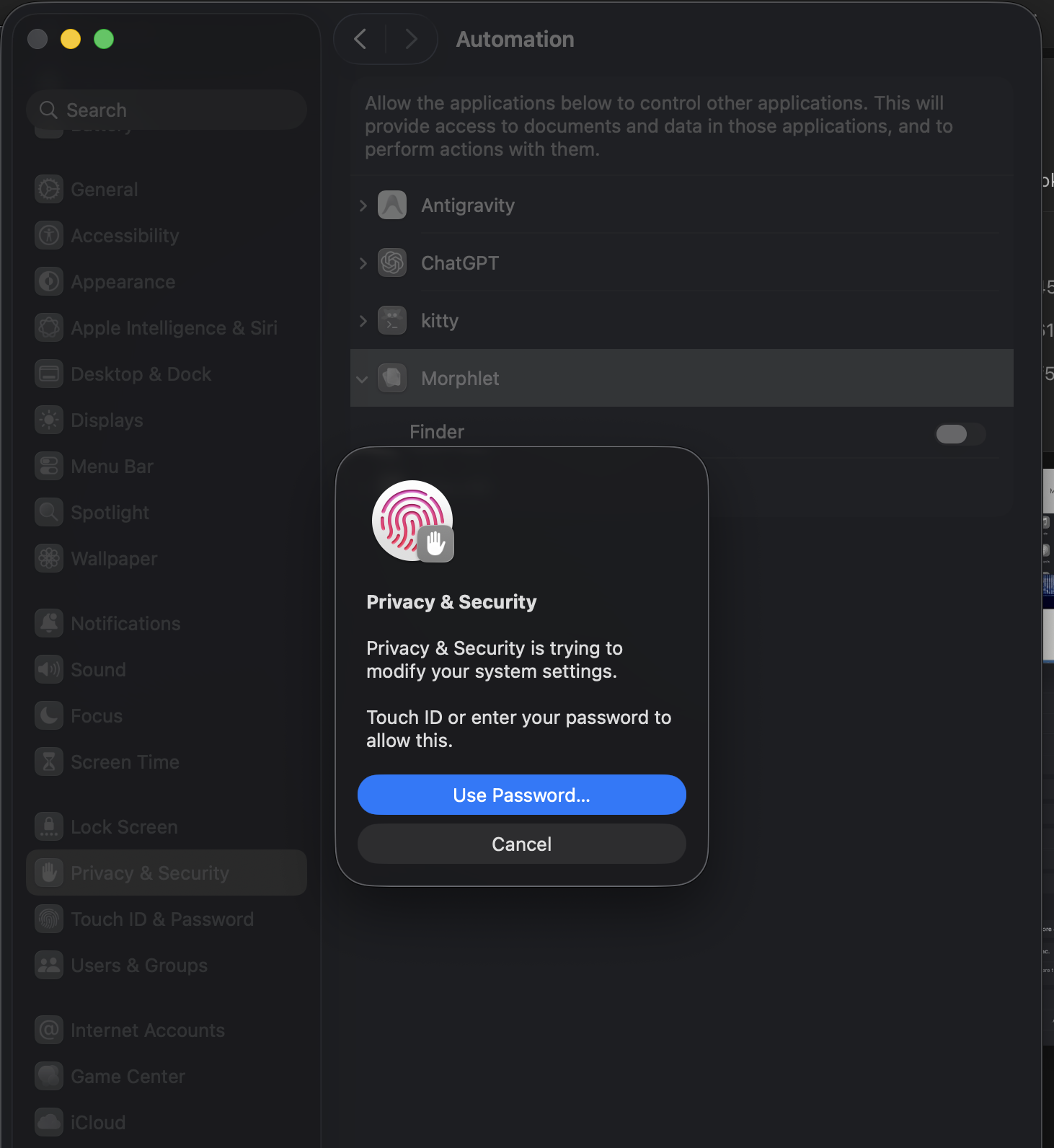
Select files in Finder and press Option+C. Choose an output format from the wheel and preview the new file. If macOS asks to let Morphlet control Finder, approve it only when you want this integration; review it in Privacy & Security → Automation.
Start dragging a supported file in Finder, then hold Option to open the wheel. Drop onto a compatible format. You can also add files directly in Studio.
Open Morphlet Studio from the menu-bar menu to convert files, crop or resize images, and edit supported PDFs. Outputs are saved as new copies.
Closing Studio keeps Morphlet running in the background. Use Quit Morphlet from the menu-bar menu to stop it. Launch at login is optional.
PERMISSIONS / ONLY WHAT YOUR WORKFLOW NEEDS
Morphlet uses macOS Automation to read the files you select in Finder. This permission is needed for the Finder-selection shortcut, not for choosing files directly in Studio.