Morphlet’s macOS builds are ad-hoc signed and are not notarized by Apple. The screenshots show macOS’s first-launch verification warning, not proof that the app is corrupted. Only proceed if you trust Morphlet and downloaded it from the official GitHub release.
Install the right download.
Choose Apple Silicon for M-series Macs or Intel for Intel Macs. Open the DMG, drag Morphlet into Applications, then eject the disk image. Launch the installed copy from Applications.
Dismiss the first warning.
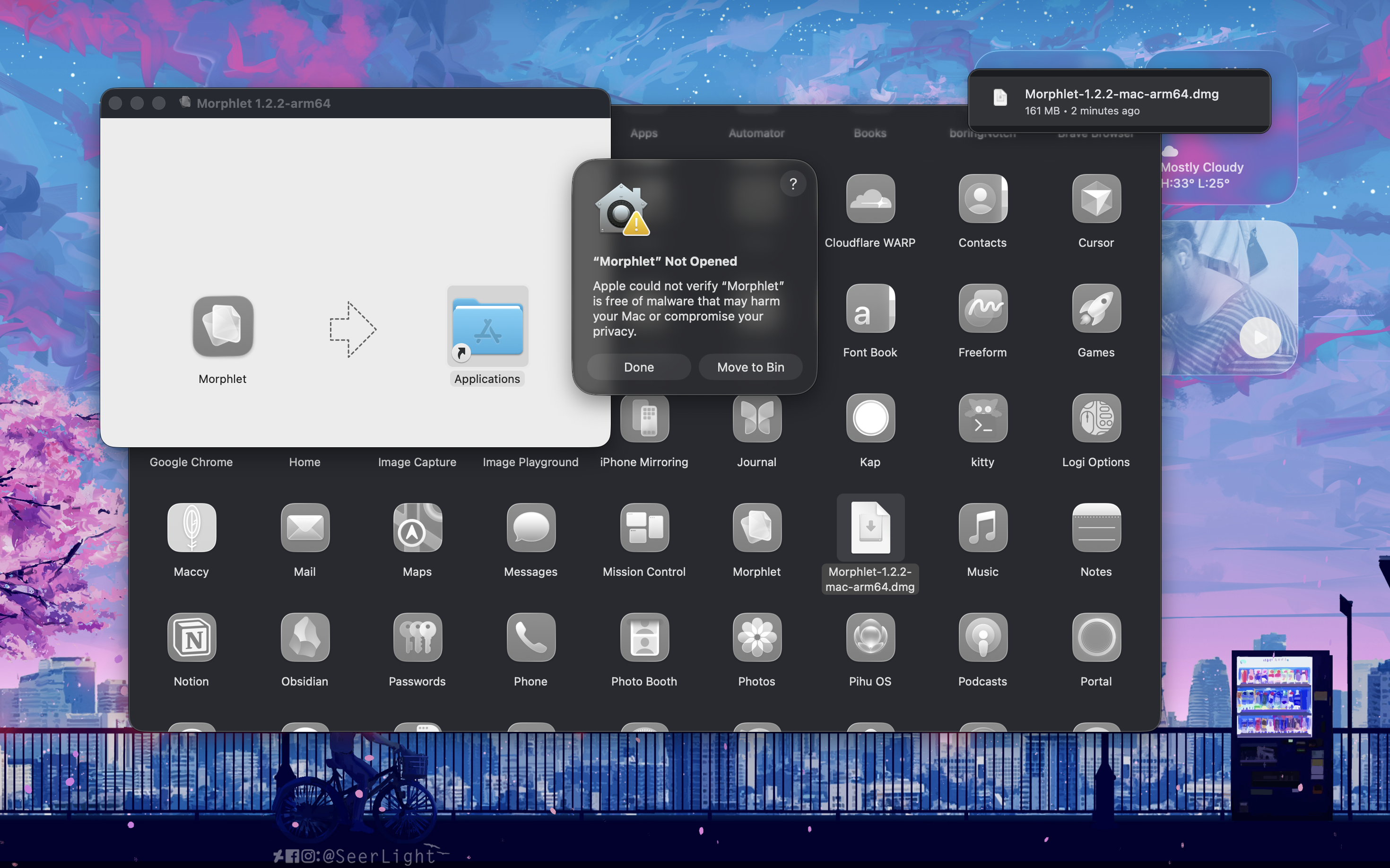
If macOS says “Morphlet Not Opened” and that Apple could not verify it, click Done. Do not choose Move to Bin if you intend to continue with this trusted download.
Find the blocked app.
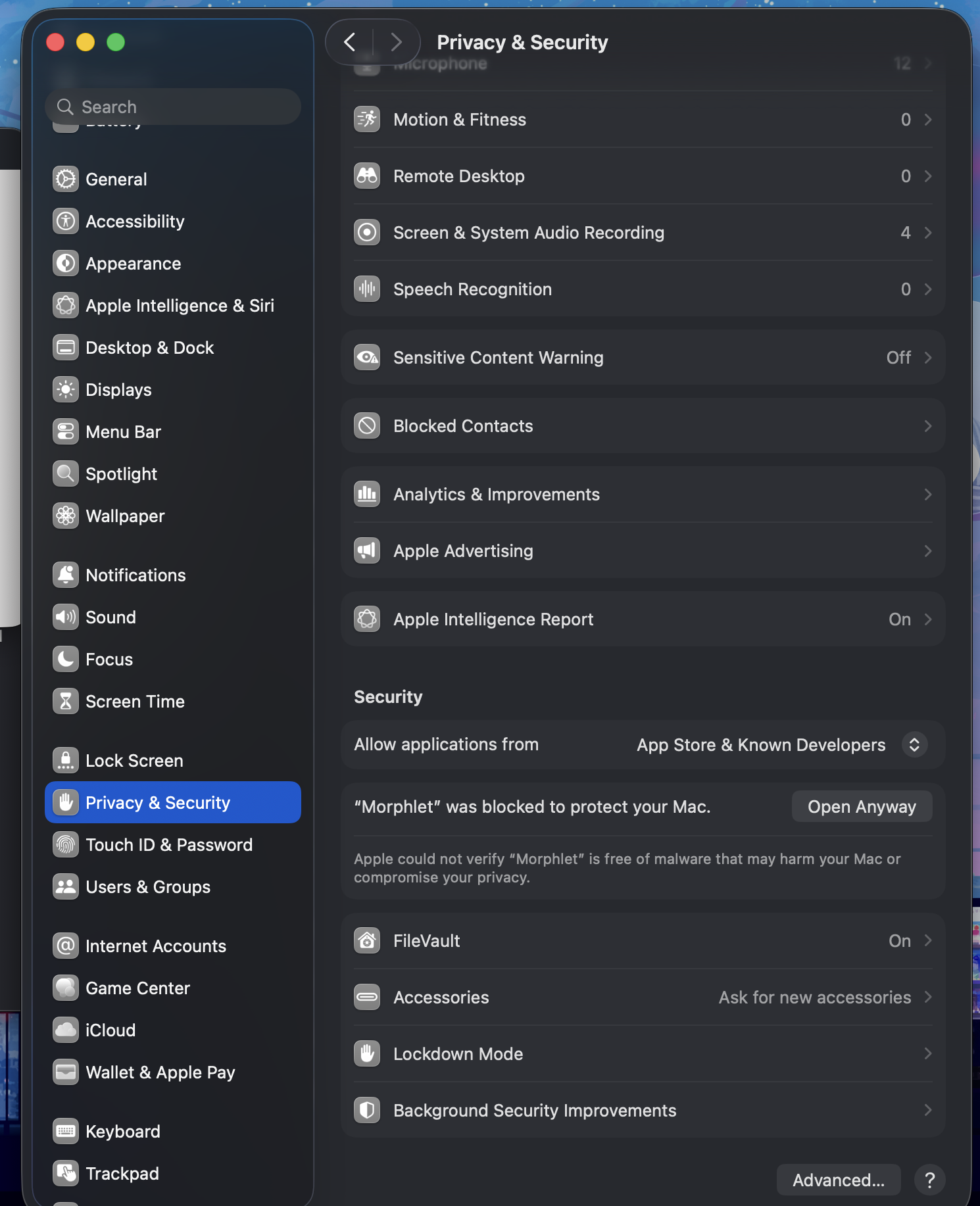
Open Apple menu → System Settings → Privacy & Security. Scroll down to the Security section and find the message that Morphlet was blocked.
Approve this app, if you trust it.
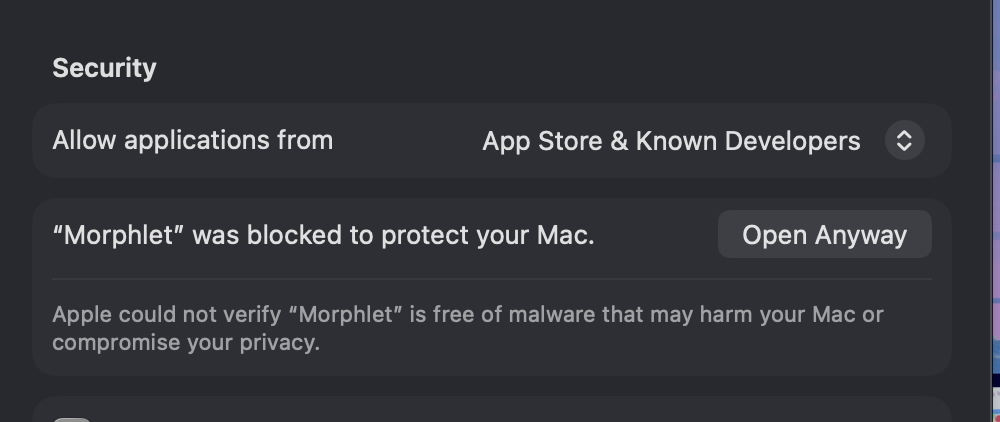
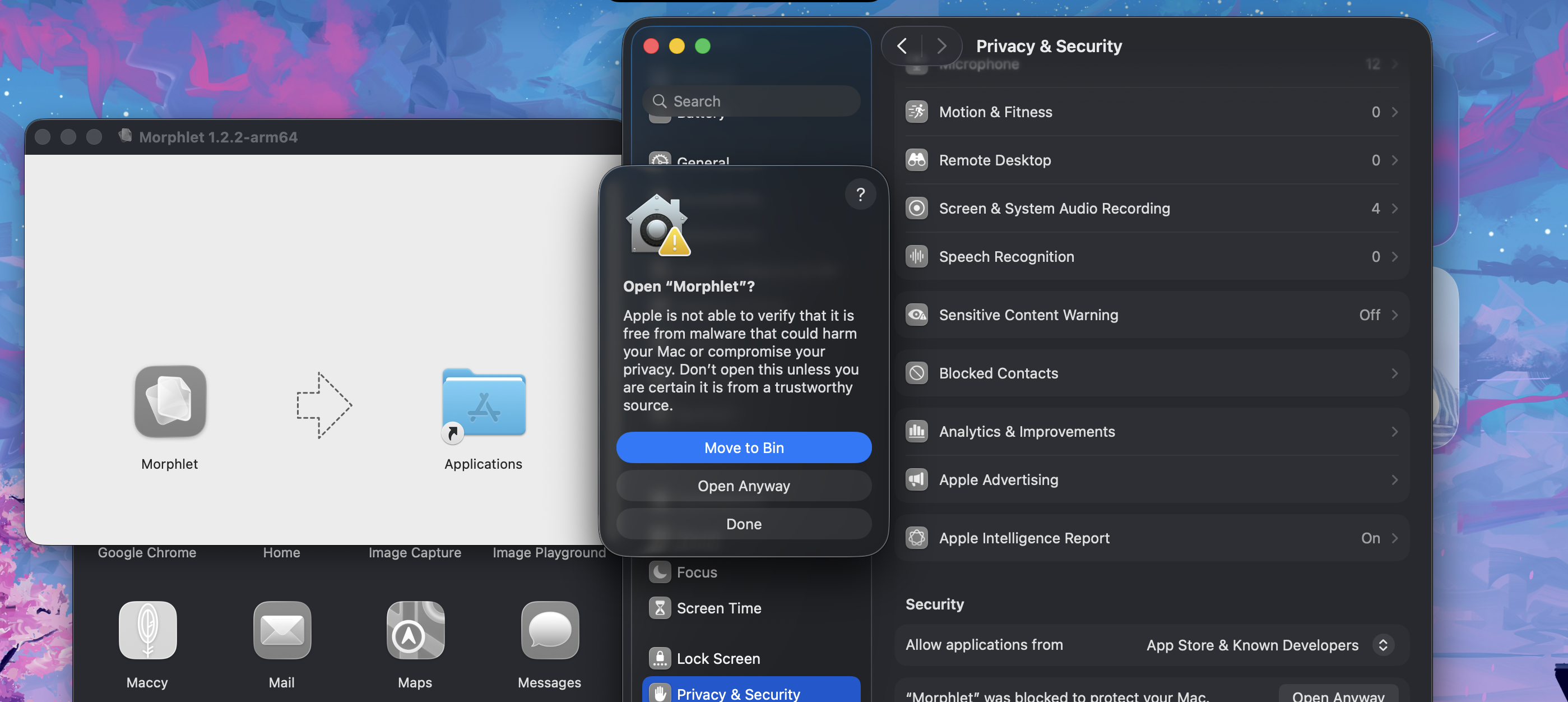
Click Open Anyway beside Morphlet. Authenticate with your password or Touch ID if macOS requests it. In the confirmation dialog, review the app name and choose Open Anyway (or Open, depending on your macOS version).
Open your workspace.
Look for the Morphlet icon in the menu bar and choose Morphlet Studio or Choose files. Morphlet runs as a background utility, so an empty Dock or no window on launch is expected.
01First launch: macOS cannot verify the unnotarized app.02Open System Settings, then Privacy & Security. Scroll to Security.03Review the Morphlet entry, then choose Open Anyway if you trust the download.04Review the final confirmation and choose Open Anyway to launch.
READY WHEN YOU NEED IT
Using Morphlet on your Mac.
Quick conversion
Select files in Finder and press Option+C. Choose an output format from the wheel and preview the new file. If macOS asks to let Morphlet control Finder, approve it only when you want this integration; review it in Privacy & Security → Automation.
Drag to the wheel
Start dragging a supported file in Finder, then hold Option to open the wheel. Drop onto a compatible format. You can also add files directly in Studio.
Use Studio
Open Morphlet Studio from the menu-bar menu to convert files, crop or resize images, and edit supported PDFs. Outputs are saved as new copies.
Keep it available
Closing Studio keeps Morphlet running in the background. Use Quit Morphlet from the menu-bar menu to stop it. Launch at login is optional.
PERMISSIONS / ONLY WHAT YOUR WORKFLOW NEEDS
Enable Finder access for Option+C.
Morphlet uses macOS Automation to read the files you select in Finder. This permission is needed for the Finder-selection shortcut, not for choosing files directly in Studio.
Open Morphlet, select a supported file in Finder, then press Option+C once to request access.
If macOS asks whether Morphlet may control Finder, choose Allow if you want the shortcut.
If you previously denied access, open System Settings → Privacy & Security → Automation. Expand Morphlet and enable Finder.
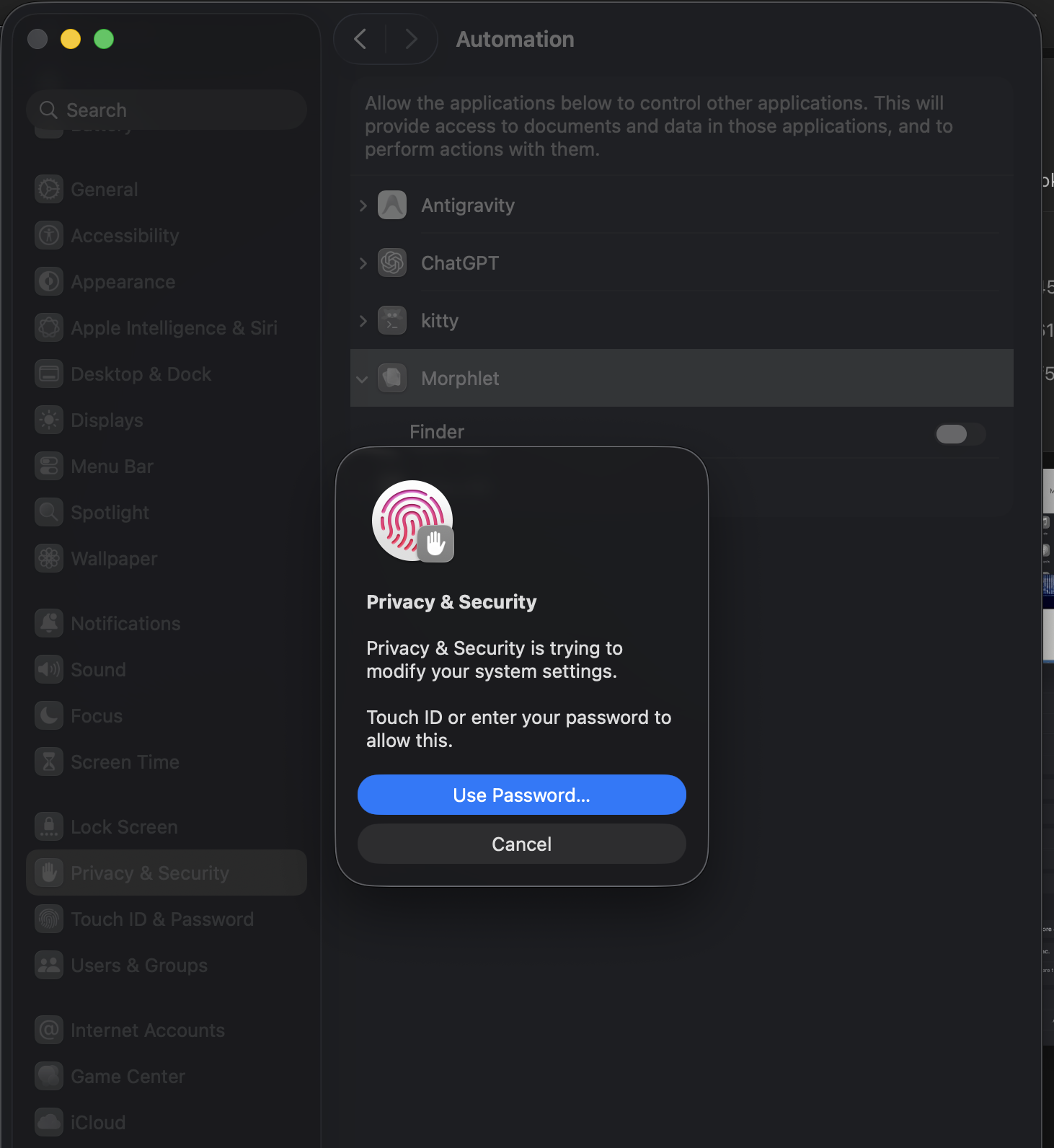
macOS may ask for Touch ID or your Mac account password to authorize the setting. Authenticate in the macOS dialog shown below; Morphlet does not collect this password.
Return to Finder, select the files again, and press Option+C. If needed, quit and reopen Morphlet. During development, the requesting app may be listed as Electron.
Enable Finder under Morphlet in Automation. The authentication prompt is controlled by macOS.
Files & Folders
If macOS requests access to a folder containing your files, allow access only to locations you intend to use. Morphlet needs to read source files and write new output copies. If a location is restricted or read-only, choose another save folder in Studio.
Optional launch at login
Enable Launch at login from the Morphlet menu-bar menu only if you want it to start with your session. Review login items in System Settings → General → Login Items & Extensions; labels can vary by macOS version.
No blanket access needed
Standard file conversion does not need Full Disk Access, Screen Recording, camera or microphone access. Finder selection uses Automation; do not grant unrelated permissions just to make the shortcut work.
Use it without Finder access
You can leave Finder Automation disabled and use Choose files, add files in Studio, or drag files into Studio. To revoke Finder access later, turn its switch off in Automation.
 MorphletGet Morphlet